Home Assistant + Wyze Integration: Full Step-by-Step Setup Guide
Table of Contents
- Why Wyze + Home Assistant Works (And Where the Integration Quietly Breaks)
- Pre-Setup Requirements and Device-by-Device Compatibility
- Installing ha-wyzeapi via HACS — The Cloud API Path
- Adding Wyze Cameras Locally via Docker Wyze Bridge and RTSP
- Practical Automations You Can Build Once Wyze Is Connected
- Troubleshooting the Five Failure Modes You'll Actually Hit
- Hardening a Wyze + Home Assistant Setup Against Realistic Threats
- Wyze Versus Zigbee, Z-Wave, and Matter — When to Keep Wyze, When to Replace It
You bought a handful of Wyze cameras and plugs because they were cheap, they worked, and the app was tolerable. Now you want them inside Home Assistant — one dashboard, one automation engine, no jumping between four phone apps to dim a bulb. The home assistant wyze integration is achievable today, but the path is community-maintained, partly cloud-dependent, and easier to get wrong than the YouTube tutorials suggest. This guide walks you through the working setup, the failure modes, and the honest trade-offs — including when keeping Wyze in your stack stops making sense.
Why Wyze + Home Assistant Works (And Where the Integration Quietly Breaks)
Start with the practitioner's reality: there is no official home assistant wyze integration. Every working setup today relies on community-maintained projects — primarily ha-wyzeapi (by SecKatie) for plugs, bulbs, locks, sensors, and thermostats, and Docker Wyze Bridge for camera RTSP streams. According to a Wyze forums response, Wyze is "focusing efforts on MATTER" instead of building a native HA integration. That sentence tells you everything about the current state: Wyze is not coming to Home Assistant. Home Assistant is going to Wyze, through a back door, with community duct tape.
There are two integration paths, and they do different things:
- Cloud API path (
ha-wyzeapi). Controls plugs, bulbs, locks, sensors, and the Wyze Thermostat via Wyze's private web API. Home Assistant must reach the internet for every command. Tokens auto-refresh in the background. Setup takes roughly five minutes once HACS is in place. - RTSP / bridge path (Docker Wyze Bridge). Exposes camera streams locally as
rtsp://<ha-ip>:8554/<camera-name>. Video flows over LAN once the bridge has authenticated. A brief WAN outage usually does not interrupt an established stream, but initial authentication and session keepalive still require Wyze cloud reachability.
You will almost certainly run both side by side: API for switches and bulbs, Bridge for cameras you want streaming to your hard drive rather than to Seattle.

Now the privacy reality. The Mozilla Foundation's Privacy Not Included review of Wyze Cam v3 gives the camera a "Privacy Not Included" warning, citing that Wyze collects "audio, video, device usage, and location data" and shares data with third-party analytics and advertising providers. Wrapping Home Assistant around the camera doesn't change what Wyze collects. It gives you a local UI on top of cloud-resident data. If your reason for moving to Home Assistant was privacy, Wyze devices are a compromise, not a solution.
This is worth holding next to Home Assistant's stated philosophy. Paulus Schoutsen, founder of Home Assistant, wrote in the State of the Open Home: "We believe your smart home should be local and private by default. The cloud should be an option, not a requirement." Wyze devices are an option that requires the cloud. They live outside HA's design philosophy. Useful, but a hybrid — not a fortress.
Wyze plus Home Assistant is not an offline solution. The integration speaks to Wyze's cloud — Home Assistant just gives you a nicer dashboard on top of that conversation.
The reliability cost is measurable. According to Joudaki et al. (IMC 2020), 39% of smart home automation failures trace to internet connectivity loss. That is why cloud-API integrations break automations during ISP outages while Zigbee and Z-Wave devices keep working. If your front door light depends on a Wyze plug, and your ISP has a bad Tuesday, that light is on or off based on whatever state it was in when the connection dropped — not on motion, not on schedule, not on anything.
At Set Smart Home we install Wyze + HA setups for clients who already own the devices and want quick wins on lighting and monitoring. We do not recommend Wyze for anything safety-critical — locks, alarms, presence-triggered access. Those go on Zigbee, Z-Wave, or Matter. We will get to that comparison in the final section. First, the setup.
Pre-Setup Requirements and Device-by-Device Compatibility
Before you touch the Home Assistant UI, walk through this checklist. Missing any of these will either block the integration or cause it to fail intermittently a week later — which is much harder to debug than failing immediately.
- Home Assistant Core or OS, version 2023.x or newer. Older versions lack stable HACS support and you will hit dependency errors that no forum post will solve cleanly.
- HACS (Home Assistant Community Store) installed. The Wyze integration is community-maintained and not in the official integrations registry. Installation guide: hacs.xyz/docs/setup/download.
- Wyze account email and password. Same credentials you use in the mobile app. Consider creating a dedicated sub-account for HA — covered in the hardening section.
- 2FA status check.
ha-wyzeapihistorically struggled with TOTP and SMS 2FA. Current versions support TOTP via secret extraction, but the cleanest path is a dedicated Wyze sub-account without 2FA for HA only, with 2FA still active on your personal account. - Wyze API key and Key ID. Wyze now requires developers to generate an API key and Key ID at developer-api-console.wyze.com. Free, requires an existing Wyze account. One key per HA instance is sufficient.
- Stable internet for setup. Even the RTSP bridge needs WAN access for initial camera authentication and periodic keepalive.
- For cameras specifically: either RTSP beta firmware flashed on the camera, or Docker Wyze Bridge add-on installed. The RTSP firmware is available at Wyze Support.
Now the compatibility matrix. Not every Wyze device works equally well in Home Assistant, and one of them — the v1 camera — should not be in your home at all.
| Wyze Device | Integration Method | Local Control? | Setup Notes |
|---|---|---|---|
| Wyze Cam v2 / v3 | Docker Wyze Bridge (RTSP) | Partial — LAN video only | Auth still hits Wyze cloud |
| Wyze Cam v1 | Not recommended | N/A | EOL 2021; unpatched RCE vuln |
| Wyze Cam Pan v2 | Docker Wyze Bridge | Partial | Pan/tilt control via cloud only |
| Wyze Plug / Plug Outdoor | ha-wyzeapi (cloud) | No | Cloud-dependent on/off |
| Wyze Bulb White / Color | ha-wyzeapi (cloud) | No | Brightness + color via API |
| Wyze Lock | ha-wyzeapi (cloud) | No | Cloud control — avoid for security-critical |
| Wyze Thermostat | ha-wyzeapi (cloud) | No | Temperature + mode via API |
| Wyze Sense v1 (USB bridge) | ha-wyzesense (HACS) | Yes — local | Requires USB bridge plugged into HA host |
| Wyze Sense v2 | Not supported in HA | N/A | No working community integration |
The v1 exclusion deserves a paragraph. According to Bitdefender Labs, the Wyze Cam v1 had a remote code execution flaw allowing attackers to access camera feeds and SD card contents. The Verge reported that Wyze knew about it for nearly three years before disclosing in March 2022 — by which point updates had stopped. If you still have a v1 in service, the integration question is moot. Replace it.
For the Wyze Lock row: the integration works, but the only thing standing between your front door and Wyze's cloud uptime is Wyze's cloud uptime. For locks where the failure mode is "someone can't get in" or "someone can," that trade-off is not one we make at clients' homes. Treat the Wyze Lock as a convenience entity in the dashboard, never as a load-bearing component of your smart home security architecture.
One community data point worth knowing: Wyze user "carverofchoice" estimates on the Wyze forums that combining Docker Wyze Bridge, ha-wyzeapi, and Alexa relays covers roughly 90% of Wyze devices in HA. Treat that as a community estimate, not a spec — your mileage depends on which devices you own.
Installing ha-wyzeapi via HACS — The Cloud API Path for Plugs, Bulbs, Locks, and Thermostats
This is the integration most readers want first: switch a plug, dim a bulb, see a sensor in HA. Follow the steps in order. Skipping ahead — especially on the API key — is the single most common cause of "invalid credentials" errors on the final step.
Step 1 — Generate Wyze API credentials
- Open developer-api-console.wyze.com
- Sign in with your Wyze account
- Click "Create API Key"
- Copy both the API Key (long string) and the Key ID (UUID format) into a password manager
- Wyze rate-limits API keys per account; one key per HA instance is sufficient
Step 2 — Install HACS (skip if already done)
- Open the HA Terminal & SSH add-on
- Run:
wget -O - https://get.hacs.xyz | bash - - Restart Home Assistant
- Settings → Devices & Services → Add Integration → search "HACS" → authorize via GitHub
Step 3 — Add ha-wyzeapi as a custom repository
- Open HACS in the HA sidebar
- Click the three-dot menu (top right) → Custom repositories
- Repository URL:
https://github.com/SecKatie/ha-wyzeapi - Category: Integration
- Click "Add"
Step 4 — Install the integration
- In HACS, search "Wyze Home Assistant Integration"
- Click the result → Download → select latest version → Download
- Restart Home Assistant (Settings → System → Restart)
Step 5 — Configure the integration
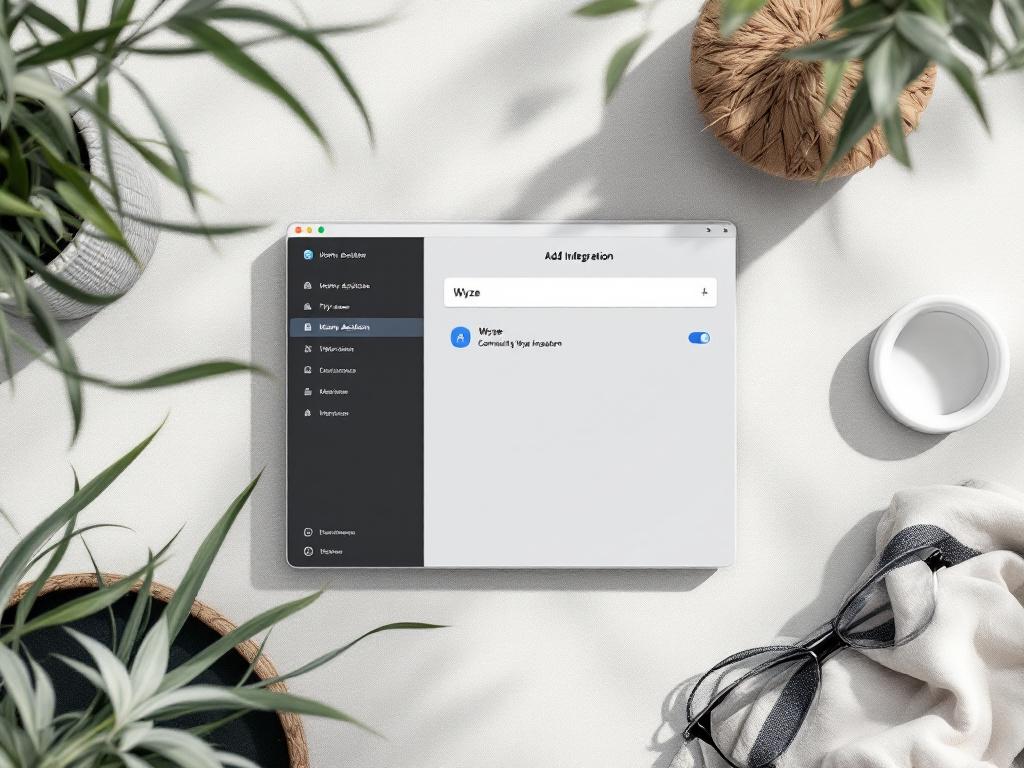
- Settings → Devices & Services → Add Integration → search "Wyze"
- Enter:
- Email (Wyze account email)
- Password (Wyze account password)
- API Key (from Step 1)
- Key ID (from Step 1)
- TOTP secret — only if 2FA is enabled, extracted from your authenticator app's Wyze entry
- Click Submit
Step 6 — Verify device import
- HA auto-discovers all devices on the Wyze account
- Settings → Devices & Services → Wyze → view device list
- Each device appears with entity IDs like
light.living_room_bulb,switch.kitchen_plug,lock.front_door - Test by toggling a plug from the HA dashboard. Response should arrive within 1–3 seconds.
Step 7 — Test the failure mode (do this once, deliberately)
- Unplug your router's WAN cable while keeping LAN up
- Try toggling a Wyze plug from HA → it will fail with a timeout error
- Plug WAN back in → control resumes within roughly 30 seconds
- Document this expected behaviour somewhere in your notes so it doesn't surprise you during a real outage
This failure mode is exactly what the IMC 2020 study quantified at 39% of automation failures. You will see it. The question is whether the automations you build on top of ha-wyzeapi can tolerate it.

Adding Wyze Cameras Locally via Docker Wyze Bridge and RTSP
Cameras are the one Wyze category where you can get video flowing on your LAN without sending every frame to Wyze's cloud. There are two methods. The bridge is the right answer for almost everyone.
Method A: Wyze RTSP Beta Firmware (simpler, but limited)
Wyze provides beta firmware that exposes a direct RTSP stream from the camera at up to 1080p. It works on Wyze Cam v2, v3, and Pan v2. Download from Wyze Support. Wyze explicitly warns that RTSP is "a beta feature" that "may reduce performance and disable some Wyze app features." After flashing, you set RTSP credentials in the Wyze app under camera settings → Advanced Settings → RTSP.
Configure in HA's configuration.yaml:
camera:
  - platform: generic
    name: Front Door Cam
    stream_source: rtsp://<rtsp_user>:<rtsp_pass>@192.168.1.50/live
stream:
ffmpeg:
  ffmpeg_bin: /usr/bin/ffmpeg
Working YAML example sourced from the Variax setup guide.
The downside: you're flashing beta firmware that disables some Wyze app features. If you ever need to revert, the process is finicky.
Method B: Docker Wyze Bridge add-on (recommended)
This works without flashing firmware, supports more camera models, and is actively maintained by mrlt8 at github.com/mrlt8/docker-wyze-bridge. It installs as a Home Assistant add-on.
Steps:
- Settings → Add-ons → Add-on Store → three-dot menu → Repositories → add
https://github.com/mrlt8/docker-wyze-bridge - Install "Docker Wyze Bridge" from the add-on store
- In the Configuration tab, enter Wyze email, password, API Key, and Key ID
- Start the add-on and watch the logs for
Connected to camera <name> - The bridge exposes RTSP at
rtsp://<ha-ip>:8554/<camera-slug>(slug = lowercased Wyze camera name with hyphens)
Add streams to configuration.yaml:
camera:
  - platform: generic
    name: Backdoor
    stream_source: rtsp://192.168.0.84:8554/backdoor
  - platform: generic
    name: Garage
    stream_source: rtsp://192.168.0.84:8554/garage
stream:
ffmpeg:
RTSP itself is not Wyze-specific. The protocol is defined in RFC 2326, a 1998 IETF standard used by virtually all networked cameras for live video. That's why Home Assistant's Generic Camera platform handles Wyze streams without special drivers — you're just pointing HA at a standard RTSP endpoint that happens to be served by the bridge.
What "local" really means here
Once the bridge authenticates with Wyze's cloud — an initial handshake plus periodic keepalive — the video stream itself flows directly from camera to HA over LAN. During a brief WAN outage, existing streams typically keep working. During a prolonged outage (hours, not minutes), the bridge may lose its session token and need to re-authenticate, which fails without internet. The cameras come back online when WAN does.
This is the closest you can get to local Wyze video without replacing the hardware. For fully offline cameras, you'd need PoE IP cameras with ONVIF support — Reolink, Amcrest, Hikvision — which is outside the scope of this guide but worth knowing as the natural upgrade path.
Practical Automations You Can Build Once Wyze Is Connected
Six recipes, each with a one-line description, working YAML, and an honest note about which parts depend on Wyze's cloud. Copy them, change the entity IDs to match your setup, and paste them into automations.yaml or build them in the HA Automations UI.
Recipe 1: Motion-triggered hallway lighting
A Wyze Cam v3 detects motion → HA turns on a Wyze bulb (or any HA-controlled light) for five minutes.
automation:
  - alias: "Hallway motion light"
    trigger:
      - platform: state
        entity_id: binary_sensor.hallway_cam_motion
        to: "on"
    action:
      - service: light.turn_on
        target:
          entity_id: light.hallway_bulb
      - delay: "00:05:00"
      - service: light.turn_off
        target:
          entity_id: light.hallway_bulb
Cloud dependency: The motion event flows from Wyze camera → Wyze cloud → ha-wyzeapi → HA. Latency is typically 2–5 seconds. Not suitable for "turn on the light before I step on something."
Recipe 2: Plug schedule based on sunset
Wyze Plug turns on landscape lights at sunset, off at 23:00.
automation:
  - alias: "Landscape lights sunset"
    trigger:
      - platform: sun
        event: sunset
    action:
      - service: switch.turn_on
        entity_id: switch.landscape_plug
Cloud dependency: Full. Plug commands route through Wyze's API. If internet drops at sunset, the automation silently fails and the lights stay off until you notice.
Recipe 3: Camera snapshot on motion saved locally
When Wyze motion fires, save a JPG snapshot to HA's local /config/www/snapshots/ folder.
automation:
  - alias: "Snapshot on motion"
    trigger:
      - platform: state
        entity_id: binary_sensor.backdoor_cam_motion
        to: "on"
    action:
      - service: camera.snapshot
        target:
          entity_id: camera.backdoor
        data:
          filename: "/config/www/snapshots/backdoor_{{ now().strftime('%Y%m%d_%H%M%S') }}.jpg"
Cloud dependency: The motion trigger is cloud-routed; the snapshot itself comes from the local RTSP stream if you've set up Docker Wyze Bridge. So the trigger can fail, but if it fires, the snapshot is local.
Recipe 4: Presence-based camera arming
Disable motion notifications when occupants are home; re-enable when everyone leaves.
automation:
  - alias: "Arm cameras when away"
    trigger:
      - platform: state
        entity_id: group.family
        to: "not_home"
    action:
      - service: switch.turn_on
        entity_id: switch.backdoor_cam_motion_detection
Cloud dependency: Toggling motion detection state goes through Wyze cloud.
Recipe 5: Thermostat occupancy adjustment
Drop the Wyze Thermostat setpoint by several degrees when no one is home for fifteen minutes. Presence-based adjustments work well for households with predictable routines, and they're a foundation for more nuanced automations for pet households where you want different rules when the humans leave but the dog stays.
automation:
  - alias: "Eco mode when away"
    trigger:
      - platform: state
        entity_id: group.family
        to: "not_home"
        for: "00:15:00"
    action:
      - service: climate.set_temperature
        target:
          entity_id: climate.wyze_thermostat
        data:
          temperature: 17
Cloud dependency: Full.
Recipe 6: Conditional scene mixing Wyze with non-Wyze devices
"Movie night" scene combining a Wyze color bulb with a Zigbee dimmer and a smart TV.
scene:
  - name: Movie Night
    entities:
      light.living_room_wyze_bulb:
        state: on
        brightness: 40
        rgb_color: [180, 0, 255]
      light.ceiling_zigbee_dimmer:
        state: off
      media_player.living_room_tv:
        state: on
Cloud dependency: The Wyze bulb command is cloud-routed; the Zigbee dimmer is fully local. Mixed-protocol scenes are where HA does the heavy lifting Wyze's own app can't.
Home Assistant does not replace Wyze's cloud — it orchestrates around it. You are buying flexibility and a unified dashboard, not independence.
One directive before moving on: for any automation involving physical safety — locks, alarms, presence-based door unlocking, smoke or water alarms — do not rely on Wyze. Use Zigbee or Z-Wave devices for those triggers and actions. The next two sections explain why and how.
Troubleshooting the Five Failure Modes You'll Actually Hit
These are the five problems you will run into, in roughly the order you'll hit them. Each row of the table maps a symptom to a root cause and a fix.
| # | Symptom | Root Cause | Diagnostic | Fix |
|---|---|---|---|---|
| 1 | "Invalid credentials" on setup | Missing API Key/Key ID, or 2FA blocking | Verify Wyze app login; confirm key at developer console | Regenerate API Key; extract TOTP secret if 2FA on |
| 2 | Devices unresponsive after 1–2 hours | Wyze API rate-limit or session token expired | HA Settings → System → Logs, search "wyzeapi" | Reload integration: Devices & Services → Wyze → Reload |
| 3 | RTSP stream stutters or freezes | Missing ffmpeg config or bandwidth bottleneck | View add-on logs; test stream in VLC | Add stream: and ffmpeg: blocks; use substream |
| 4 | Automations stop working overnight | Token refresh failed at HA restart, or Wyze API change | Check Wyze status forum; check HA logs at restart time | Re-auth integration; update ha-wyzeapi via HACS |
| 5 | Wyze Lock shows wrong state | Wyze cloud cache lag — HA reflects last-known state | Cross-check state in Wyze mobile app | Force refresh: Developer Tools → Services → homeassistant.update_entity |
A few notes on what these failures look like in practice.
Failure mode 4 is the most insidious. It appears intermittent — automations work fine for days, then quietly stop overnight. The actual cause is almost always a Wyze API change that broke ha-wyzeapi, and the fix is a HACS update of the integration within one to two weeks of the breakage. Keep HACS notifications enabled in your HA mobile app, and check the ha-wyzeapi GitHub issues when you see unexplained drops.
Failure mode 3 has a hardware ceiling. ffmpeg transcoding load saturates a Raspberry Pi 4 quickly if you're running four or more camera streams simultaneously. The fix is either switching to Substream mode (lower resolution) in Docker Wyze Bridge configuration, or moving HA to x86 hardware — a refurbished Intel NUC handles 8+ Wyze cameras without breaking a sweat for under $200.
The broader context worth keeping in mind while you're debugging: troubleshooting a Wyze integration is not only about restoring control. Every API call going out is observable. Research by Apthorpe et al. showed that even encrypted smart home traffic leaks behavioural information — "network observers can infer sensitive inferences about user behavior, such as when they are home, sleeping, or using certain devices." When you fix Failure Mode 2 by reloading the integration, you're restoring a stream of metadata about your home that wasn't there during the outage. That's not a reason not to fix it. It's a reason to make decisions about which devices belong in this stream at all.
Hardening a Wyze + Home Assistant Setup Against Realistic Threats
The threat model for Wyze + Home Assistant isn't a hooded hacker on the other side of the world. It's the vendor delaying disclosure of flaws that already exist in your hardware. Dan Goodin at Ars Technica reported in 2022 that "Wyze... failed for three years to disclose a security vulnerability that allowed attackers to remotely access video feeds and SD card contents." That is the realistic shape of the risk: a known flaw, sat on, in cameras you bought because they were cheap.
Jen Caltrider, who leads Mozilla's Privacy Not Included program, puts the economics plainly: "If a connected device is cheap, chances are good the company is making money off your data somehow." A Wyze Cam v3 retails around $36. The data-monetization layer is part of the price model. Home Assistant doesn't change that — it just lets you see the device alongside everything else.
Hardening reduces blast radius. It does not change Wyze's data practices. With that framing, here's the eight-item checklist for a Wyze + HA deployment that won't make things worse:
- Use a dedicated Wyze sub-account for Home Assistant. Don't share your primary account credentials with the integration. If the HA host is ever compromised, you can revoke that sub-account without losing access on your phone.
- Store credentials in
secrets.yaml, notconfiguration.yaml. HA reads fromsecrets.yaml(kept out of any backup snapshot or repo you share) and references via!secret wyze_password. - Enable 2FA on the primary Wyze account. Even though it complicates the HA integration, leaving 2FA off on the human-used account is the bigger risk.
- VLAN-isolate your Wyze cameras. Put all Wyze devices on a separate VLAN with no access to your personal LAN. They still need WAN for cloud auth, but they can't pivot to your computers or NAS if compromised. This is standard practice for any device that phones home, and it's foundational smart device security architecture.
- Block outbound traffic from cameras to unnecessary destinations. Wyze cameras only need to reach Wyze's API endpoints. If your router supports DNS-based allowlisting, restrict to those domains.
- Restrict HA dashboard access. Settings → People → create separate users with the Viewer role for family members who shouldn't disable cameras or unlock doors. Enforce strong passwords on every account.
- Don't expose Home Assistant directly to the internet. Use Nabu Casa Cloud ($6.50/month, from HA's parent company) or a self-hosted Tailscale tunnel. Port-forwarding HA to the open internet is the single most common HA compromise vector.
- Monitor for failed authentication events. Watch HA logs for repeated
wyzeapiauth failures — that pattern can indicate a Wyze account takeover attempt or just expired credentials, but either way you want to know early.

What hardening cannot fix: even with all of the above, a Wyze camera's video frames are still processed in Wyze's cloud for features like person detection. The Apthorpe et al. measurement study (ACM 2019) examined 81 smart home devices and found 72 of them contacted at least one third-party endpoint beyond the vendor — and encrypted traffic still leaked behavioural patterns. Hardening reduces the surface. It does not eliminate it.
Hardening a Wyze setup reduces the blast radius of a compromise. It does not change the fact that your video frames are processed in Wyze's cloud — that is the deal Wyze sells you.
Wyze Versus Zigbee, Z-Wave, and Matter — When to Keep Wyze, When to Replace It
Wyze has been clear about where they're heading. Their own forum response on Home Assistant integration says they're "focusing efforts on MATTER." That tells you where the puck is going. Local-first protocols are the future Wyze themselves are betting on. The question for you is whether to wait for Wyze's Matter rollout or migrate now.
Four protocols to compare:
- Wyze cloud API — what you just set up
- Zigbee 3.0 — local mesh, hub required, no cloud dependency (CSA)
- Z-Wave — local mesh, hub required, no cloud dependency
- Matter 1.0 — IP-based, local-first application layer, optional cloud (CSA)
| Criterion | Wyze (Cloud API) | Zigbee 3.0 | Z-Wave | Matter 1.0 |
|---|---|---|---|---|
| Setup time per device | ~5 min | ~3–5 min | ~3–5 min | ~2 min |
| Offline operation | No | Yes | Yes | Yes |
| Hub required | No (HA + internet) | Yes (~$30–80) | Yes (~$50 stick) | No |
| Entry-point device cost | $20–50 | $15–40 | $30–60 | $25–70 |
| Reliability dependency | Wyze API + ISP | Local mesh | Local mesh | Local IP network |
| Privacy posture | Hybrid (cloud) | Fully local | Fully local | Fully local |
| Vendor lock-in | High | Low | Low | Very low |
| Wyze device support | All Wyze products | None | None | Partial; rollout incomplete |
When Wyze + HA makes sense:
- You already own Wyze devices and want a unified dashboard quickly.
- The devices are non-critical: mood lighting, plant-watering plugs, secondary cameras for the garage.
- You're early in your Home Assistant journey and want a quick win before committing to a Zigbee coordinator.
When to migrate or run a hybrid:
- Any device involved in physical security — door locks, motion-armed alarms, presence detection that triggers door unlocking.
- Properties with unreliable ISP. The 39% internet-related failure rate becomes your daily reality, not a statistic.
- Multi-tenant deployments — hotels, rentals, offices — where guest device data should never leave the property in the first place.
The migration doesn't have to be all-or-nothing. Home Assistant happily runs ha-wyzeapi and a Zigbee coordinator (a Sonoff ZBDongle-P or similar, around $30) at the same time. A common pattern: replace the Wyze Lock with a Zigbee lock (Aqara, Yale) within the first year. Keep Wyze cameras for low-stakes monitoring. Gradually swap Wyze plugs for Zigbee plugs (Ikea Tradfri, ~$10 each) as the originals fail or as automations grow more demanding and you want to expand into smart kitchen and appliance automation that needs to keep working through ISP outages.
If you've followed the setup sections, your Wyze devices are now in Home Assistant. The next decision is honest and device-by-device: which of your automations are safety-critical, and for each of those, would you accept a 39% chance the automation silently fails during an ISP outage? The answers — written down, per device — are your migration roadmap. If you'd like that audit done formally for an apartment or property in Poland, Set Smart Home performs it as part of a free consultation: we map your current Wyze devices to their failure modes and propose a Zigbee, Z-Wave, or Matter migration plan with timelines and costs.